
How to Tap to Watch
To access the film using FilmTrade card, just tap the back of your phone (near the top) against the movie poster.
If you have trouble:
(1Ensure your smartphone has NFC capabilities enabled in your device settings
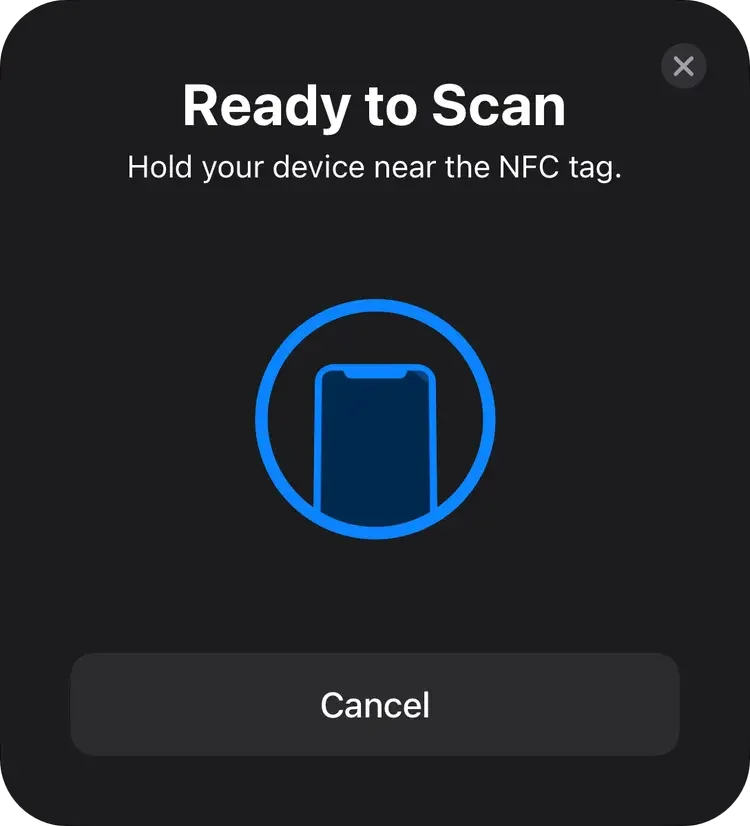
Then when the tap succeeds, you'll see:
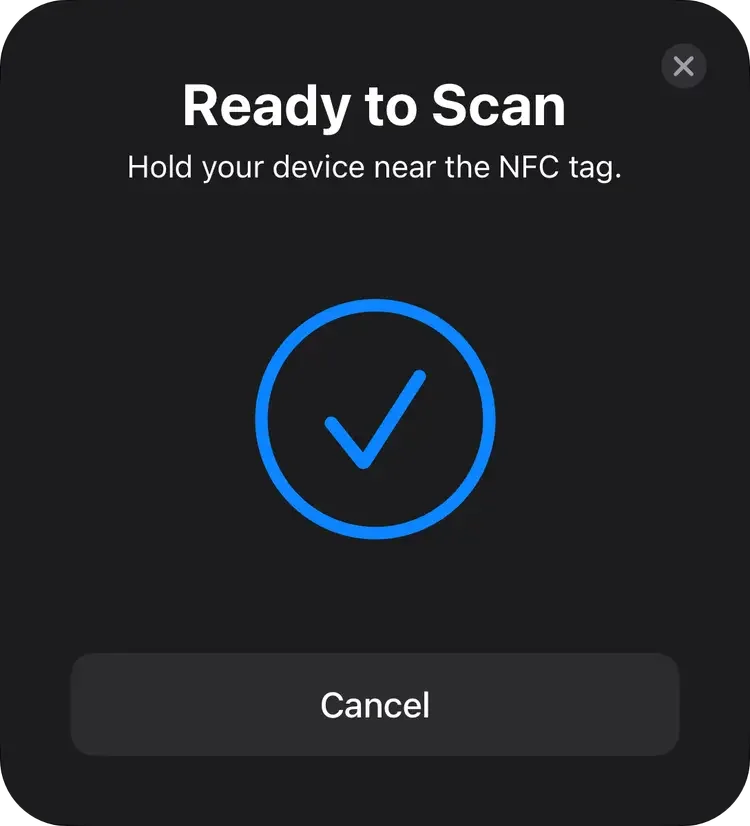
(2) Set the FilmTrade card down on a table or other surface. With the phone unlocked, tap the back of your phone against the movie poster (right half of the card)
The phone's NFC reader (typically toward the top end of the phone, on the back side) should be close to flat against the card
Hold steady, or try sliding the reader slowly from the bottom of the poster to the top. Within 2-3 seconds you should see a notification pop up, usually along with a vibration or a notification sound.
(3) Tap the pop-up notification to open the FilmTrade web app in your default browser (or, on some Android systems, it may open the web app in the browser without requiring a tap).
(4) You'll be automatically authenticated to watch the film, via the card's encrypted credentials, and the film details screen will be displayed, with the film ready to play.
(5) Tap the Play button! Or learn more about ways to watch your film on other screens, like your TV or laptop.
For additional support, contact help@filmtrade.org, including your phone make, model, and operating system version. Find this version number:
on iPhone: Settings → General → About
on Android: Settings → About phone or About tablet → Android version
Ways to Watch
If you have a FilmTrade card, you'll need to tap it with your phone to access its film. However, since we're cinema lovers, we recommend enjoying your film on a larger screen if you can.
FilmTrade's web-based video player can wirelessly project the film from your phone to most modern TVs that have streaming capabilities built-in, using AirPlay (if you have an iPhone) or Google Cast (if you have an Android phone).
We plan to launch native FilmTrade apps for Connected TVs and streaming devices, but until then – we think AirPlay and Google Cast are great options!
It can also project stand-alone streaming devices that attach to TVs – such as Apple TV, Google TV, Roku Player, Amazon Fire TV. If you don't have a supported TV or streaming device, there are good stand-alone streaming devices that can be purchased for $20-40.
One last option to watch on your TV: if you have created a FilmTrade account, then any card that you tap while logged in on your phone's browser will automatically be added to your Collection. It is then available to play on any other device where you're logged in. So, after scanning the device with your phone, you can open it on your laptop browser, and connect your laptop to your TV with an HDMI cable.
More detailed instructions below.
-
Android Phone (Google Cast)
Make sure your TV and phone are connected to the same Wi-Fi network
Look for the Cast icon on the FilmTrade player
Tap the cast icon and select your TV or Chromecast device from the list
Once connected, the movie will play on your TV. You can control the playback from your phone, but also may be able to use the controls on your TV/streaming device's remote control.
Connect your phone to a charger while watching!
If Cast isn't working, try restarting both your phone and TV/streaming device. Learn more at: https://www.android.com/better-together/#cast
-
Ensure your AirPlay-compatible TV or streaming device is on the same Wi-Fi network as your iPhone
Look for the AirPlay icon on the FilmTrade player
Tap the AirPlay icon and choose your AirPlay-compatible TV or streaming device from the list
The movie will begin playing on your TV. You can control the playback from your phone, but also may be able to use the controls on your TV/streaming device's remote control.
Connect your phone to a charger while watching!
If AirPlay isn't working, try restarting both your phone and TV/streaming device. Learn more at: https://support.apple.com/en-us/102661
-
Get an HDMI cable (make sure it's long enough to reach from your laptop to TV)
Connect one end to your laptop's HDMI port. Some laptops require adapters for HDMI connections (particularly MacBooks)
Connect the other end to an available HDMI port on your TV
Turn on your TV and select the correct HDMI input (using your TV remote); check your TV's manual if you're having trouble finding the correct input setting
Your laptop screen should now display on the TV; you may need to adjust your laptop's display settings (extend or duplicate)
Open your web browser and navigate to your Collection on FilmTrade, and start the movie
Play the movie in full-screen mode for the best viewing experience
Adjust volume using either your laptop or TV remote control