
Need help you can’t find here? Email us at help@filmtrade.org
How to Tap to Watch
To access the film using FilmTrade card, just tap the back of your phone (near the top) against the movie poster.
If you have trouble:
(1Ensure your smartphone has NFC capabilities enabled in your device settings
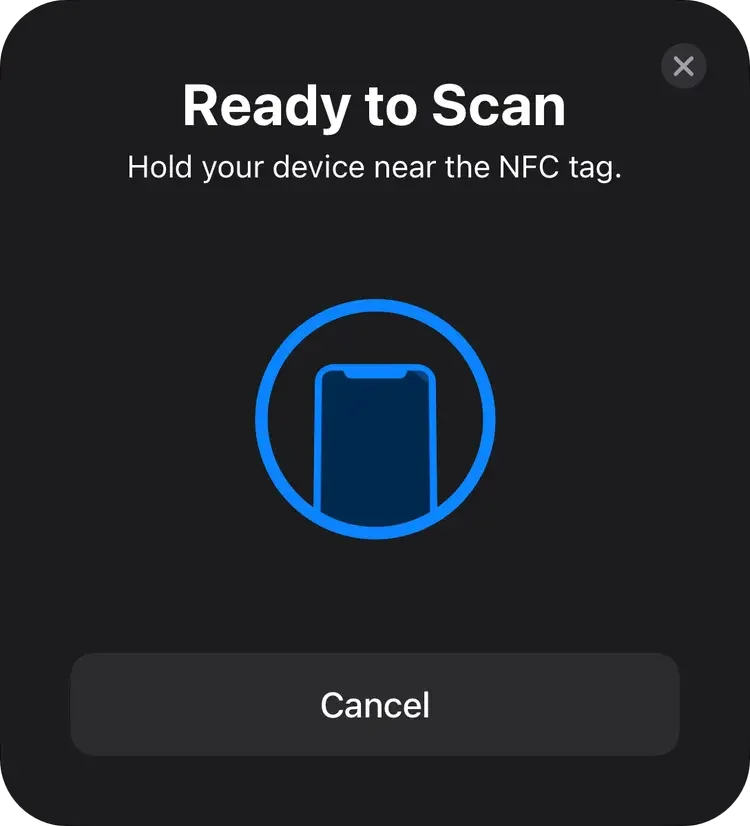
Then when the tap succeeds, you'll see:
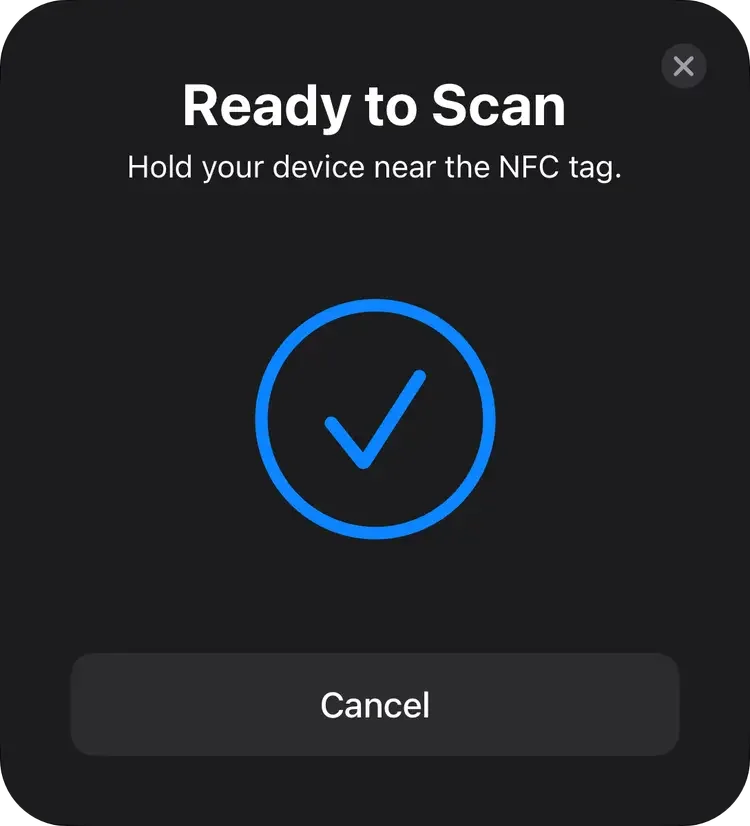
(2) Set the FilmTrade card down on a table or other surface. With the phone unlocked, tap the back of your phone against the movie poster (right half of the card)
The phone's NFC reader (typically toward the top end of the phone, on the back side) should be close to flat against the card
Hold steady, or try sliding the reader slowly from the bottom of the poster to the top. Within 2-3 seconds you should see a notification pop up, usually along with a vibration or a notification sound.
(3) Tap the pop-up notification to open the FilmTrade web app in your default browser (or, on some Android systems, it may open the web app in the browser without requiring a tap).
(4) You'll be automatically authenticated to watch the film, via the card's encrypted credentials, and the film details screen will be displayed, with the film ready to play.
(5) Tap the Play button! Or learn more about ways to watch your film on other screens, like your TV or laptop.
For additional support, contact help@filmtrade.org, including your phone make, model, and operating system version. Find this version number:
on iPhone: Settings → General → About
on Android: Settings → About phone or About tablet → Android version